 SnapOut · 截了

01
Scan
SnapOut opens your Screenshots album by default. From Settings, you can also include saved/downloaded temporary images. OCR runs on device.
SnapOut organizes your Screenshots album by default. From Settings, you can also include saved or downloaded temporary images. Camera photos are skipped; items land in Review, Keep, and Cleanup.
 Hi, I'm JieJie
v1.1
Photo library tool
Hi, I'm JieJie
v1.1
Photo library toolOrder confirmations, chat threads, route maps, receipts, articles, deals, one-off captures — you've lost track of which ones still matter.
Scrolling through them costs 20 minutes. Deleting blindly costs the wrong ones.
The default flow runs entirely on your iPhone. SnapOut reads screenshots by default; if you opt into temporary images, it still skips camera photos and does not upload originals.
SnapOut opens your Screenshots album by default. From Settings, you can also include saved/downloaded temporary images. OCR runs on device.

Each shot lands in Review, Keep, or Cleanup — by content type, freshness, and your preferences.

Open Cleanup. Hit delete. iOS Photos confirms once more. Camera photos are skipped, and nothing is removed without you.
Not mockups — these are real screenshots straight out of the app.
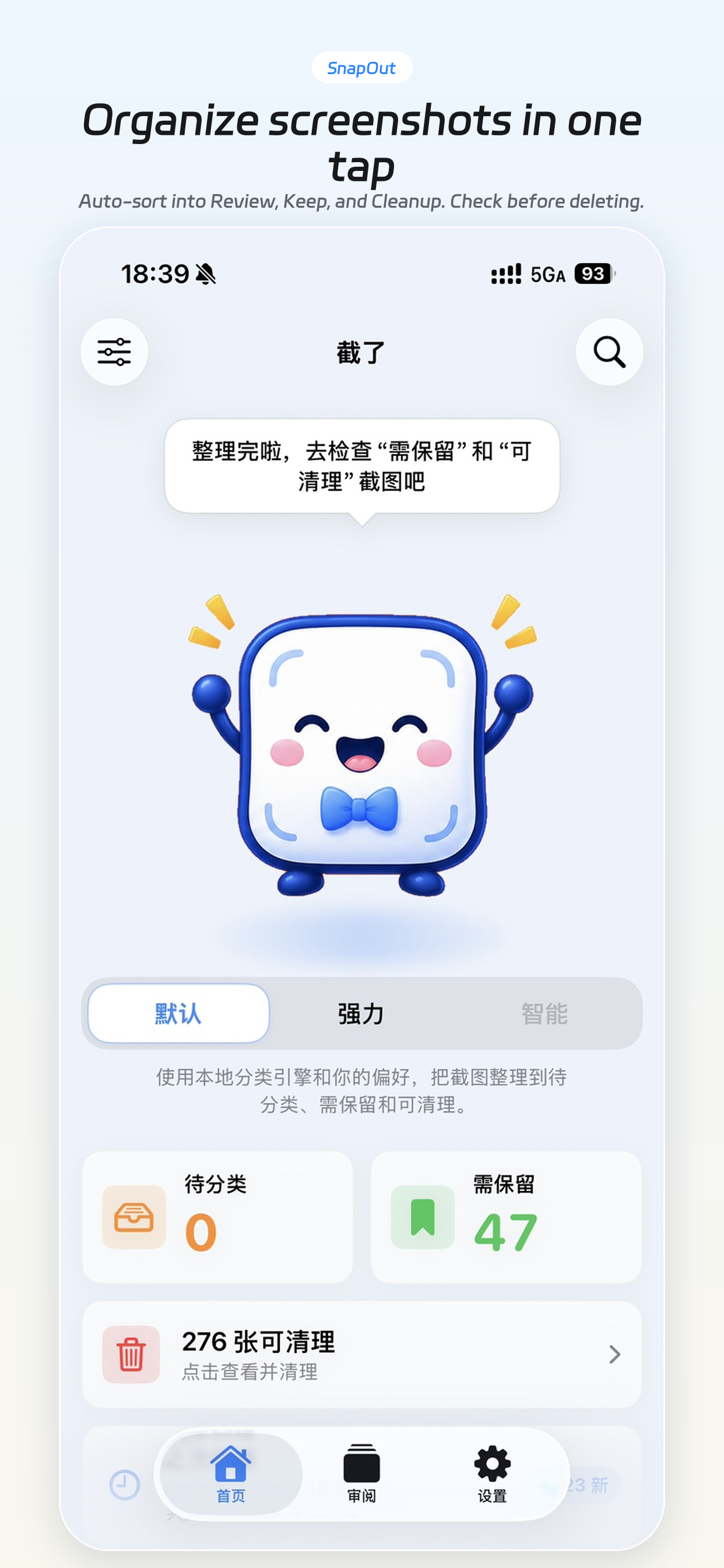 Home · three queues
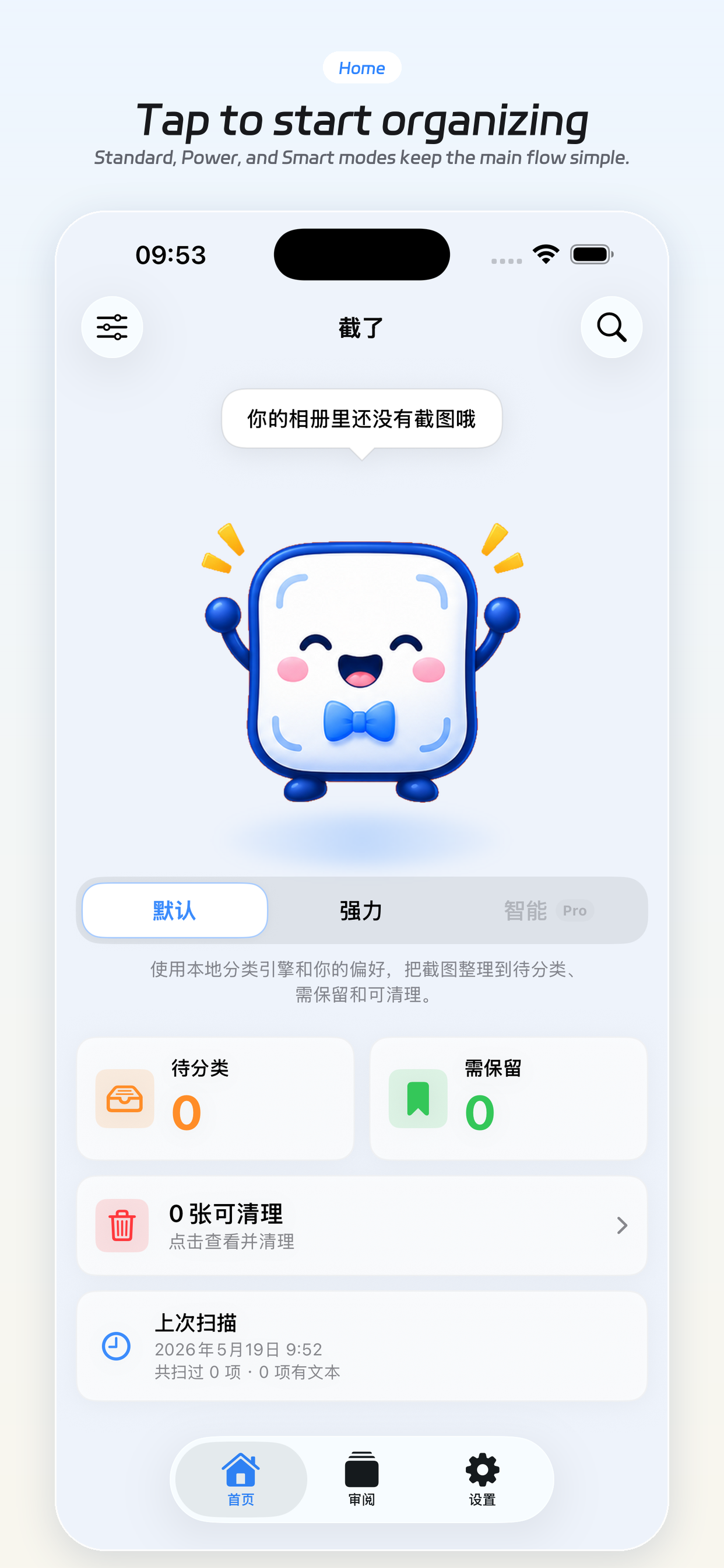 Welcome state
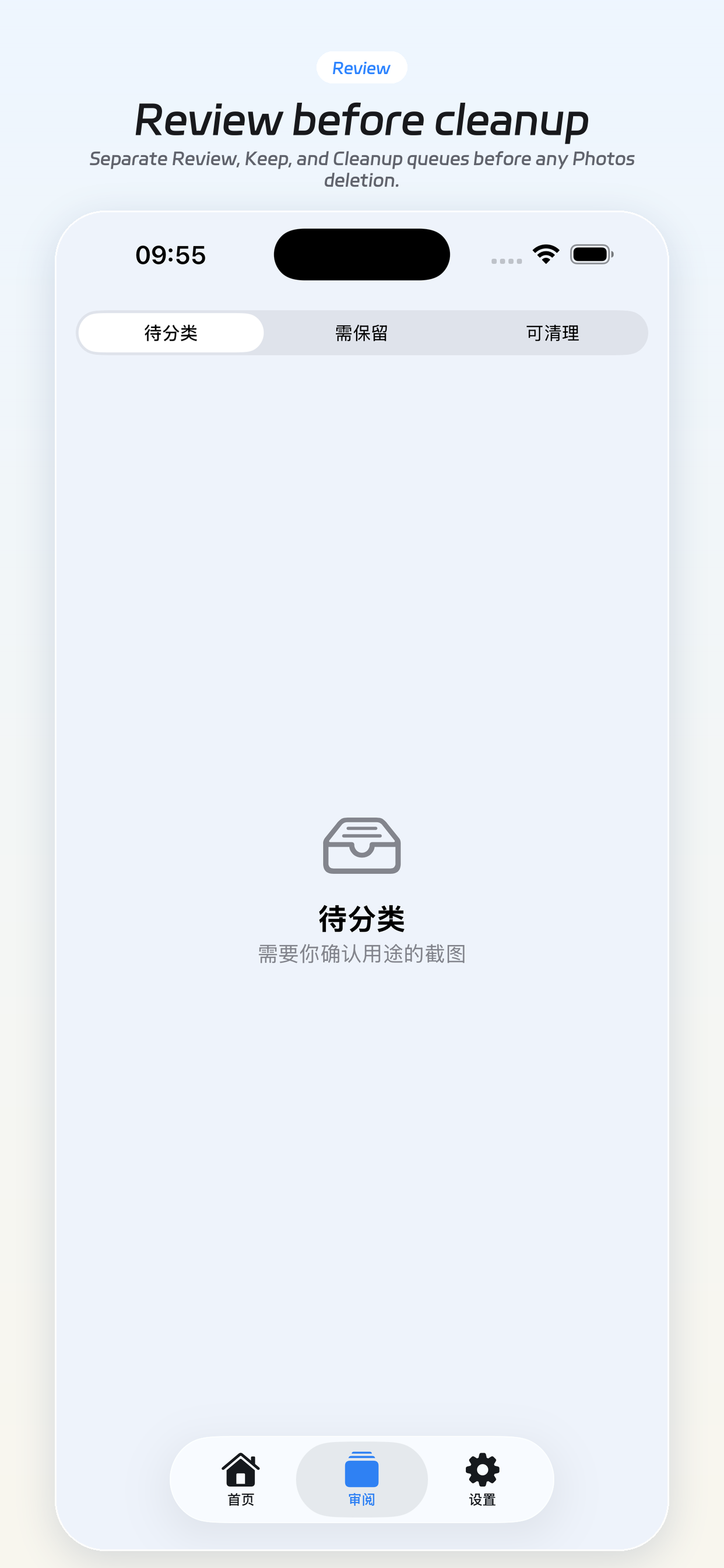 Review queue
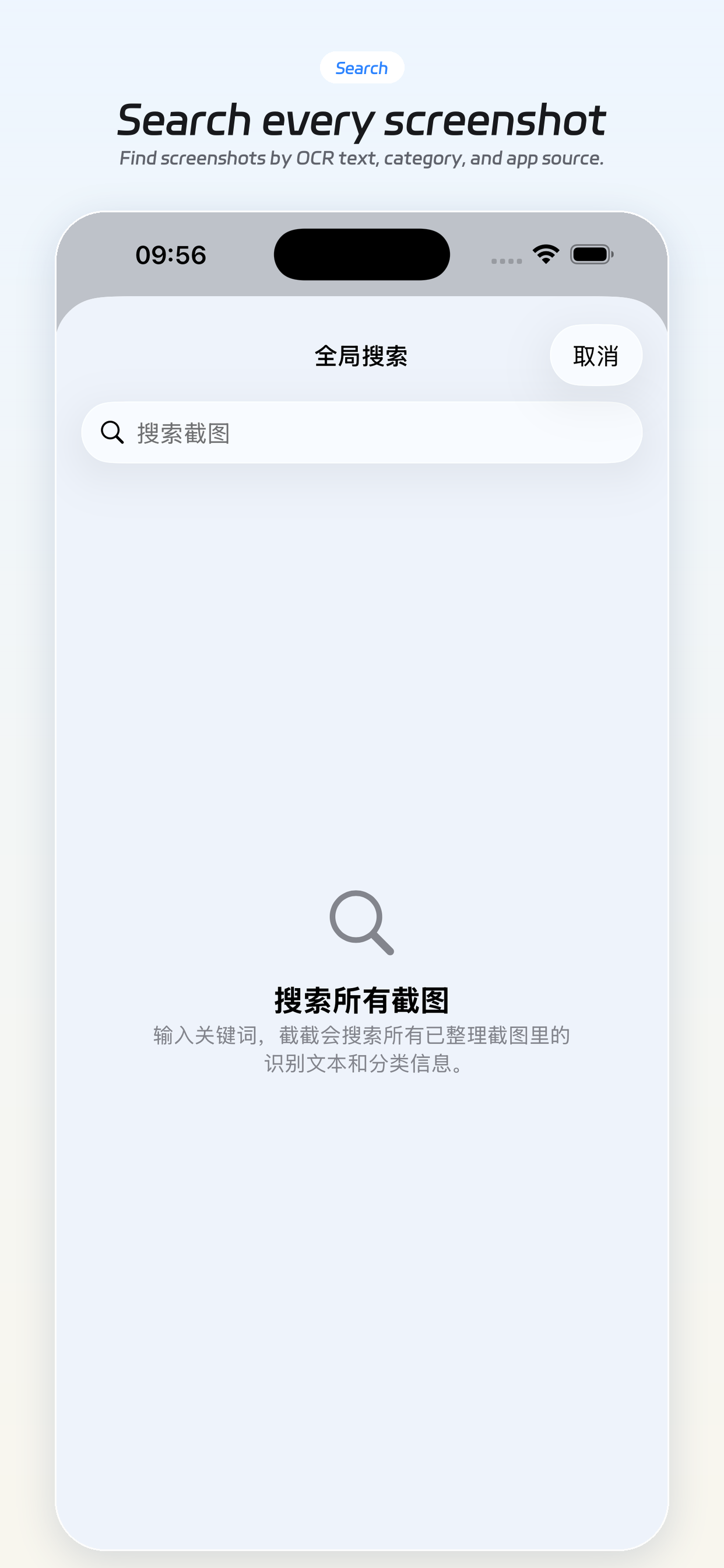 Search OCR text
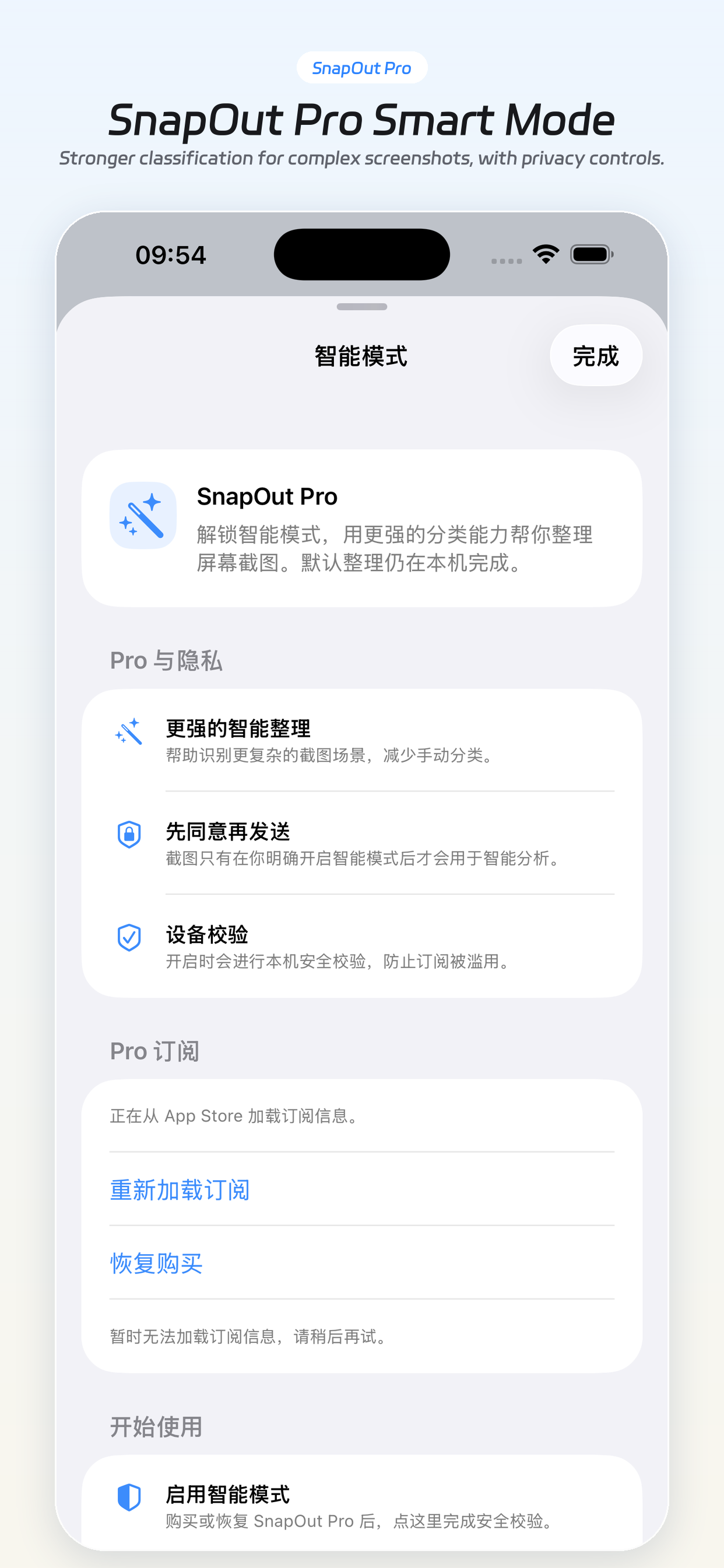 Smart Mode
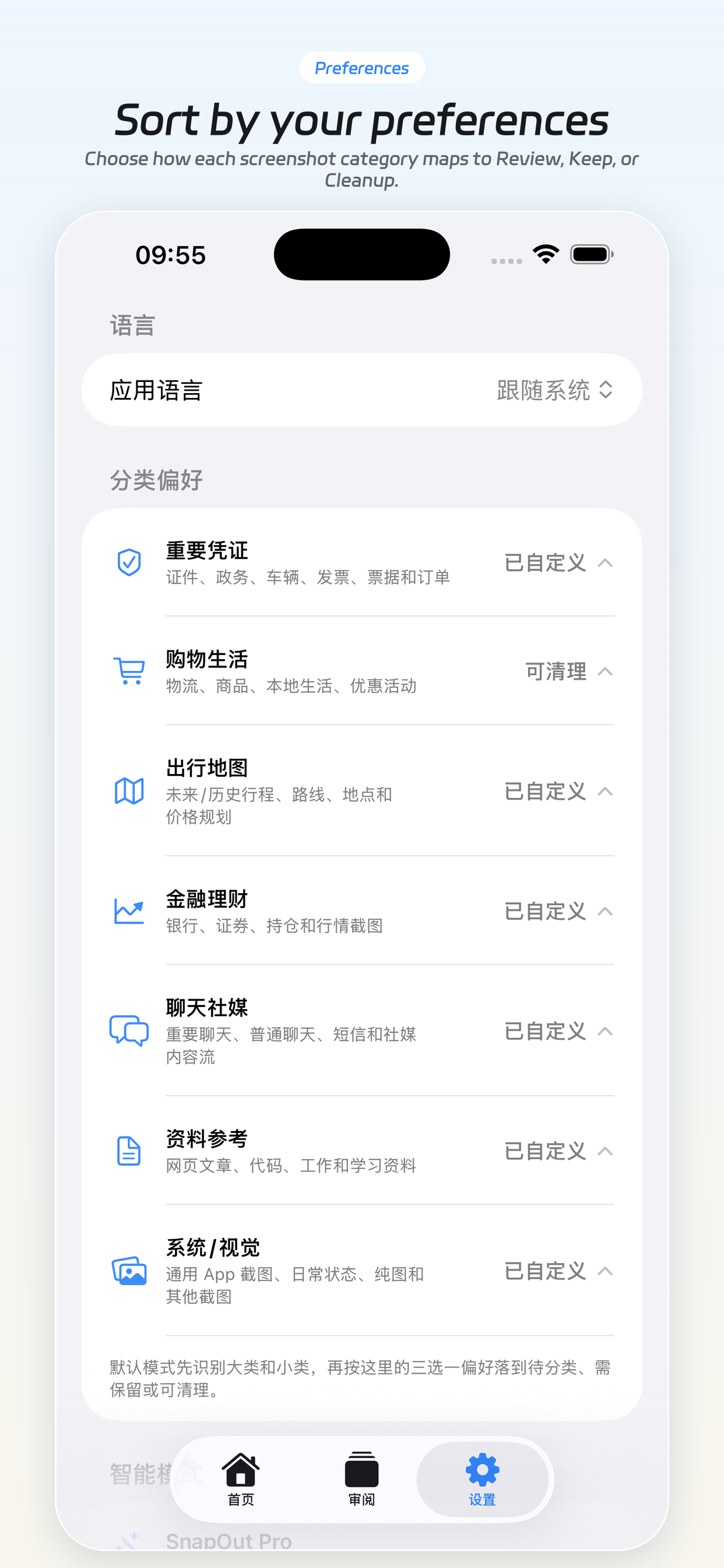 Preferences
Recognition, sorting, and search all run locally. Screenshots and opted-in temporary images are not uploaded, copied, or used for training.
SnapOut never deletes anything for you. You open Cleanup, you tap delete, then iOS Photos confirms once more.
For tricky images, Pro Smart Mode sends a compressed image copy from the current confirmed scan scope to the SnapOut cloud service for a single classification — not retained long term, not used for training, and not sold or shared with advertising networks.
Stitched long screenshots, blurry shots, multilingual UIs, unusual layouts — on-device recognition isn't always enough. Smart Mode hands those edge cases to a stronger multimodal model so sorting stays accurate.
The default on-device flow does not change. Smart Mode is an optional add-on you can turn off anytime.
Didn't see your question? Email support@sflood.com — we reply within 7 business days.
No. Anything in Cleanup waits for you to tap delete, and iOS Photos asks for confirmation a second time. Deleted photos typically go to Recently Deleted and can be restored from there per Apple's behavior.
No. The default scope is your Screenshots album. If you opt into Temporary Images from Settings, SnapOut also includes saved/downloaded temporary images. Camera photos are skipped locally and do not enter OCR, classification, Smart Mode, or default export.
Not for the default flow. All recognition and classification runs on your device. The only time SnapOut goes online is when you opt in to Smart Mode with Pro or Credits — and even then, only a compressed image copy from the current confirmed scan scope is sent for that single classification request.
iOS 17 and newer. iPhone 12 and later run best. On-device OCR and classification rely on the system Vision framework.
Smart Mode uses established multimodal vision capabilities for complex images. The specific infrastructure and model version may change based on stability, compliance requirements, and service quality. Compressed image copies are used only for the current classification, not retained long term, not used for training, and not sold or shared with advertising networks.
Not yet. We're focused on iOS first; Android is on the table once iOS is stable.
Subscribe from inside the app at Settings → SnapOut Pro. Apple processes the payment. To cancel, open iOS Settings → your Apple ID → Subscriptions → SnapOut. You'll keep Smart Mode until the current period ends.
Free to download. The default on-device flow stays free forever. Smart Mode is opt-in.
Download SnapOut on App Store